Setting up your Organization
Last updated: October 7, 2025
When you first get started with Flow, you'll want to configure your organization.
Organization Details
To do so, go to the Settings page via the button on the bottom-left of the page:

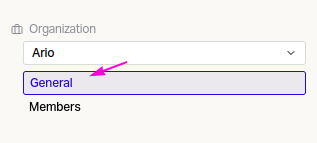
Under "Organization", select "General"
Set your Organization name, and URL:
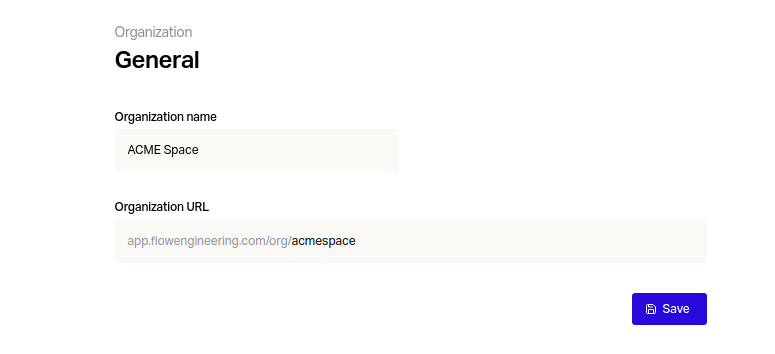
Make sure to click "Save" once you're done.
Organization URLs must be unique. If your desired URL isn't available, you'll need to choose a different one.
Organization Members
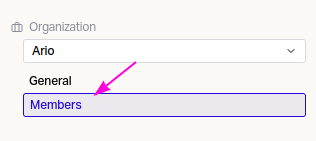
Next, add members to your Organization, by navigating to the Members section of Organization Settings
Organization Members have access to all Projects inside your Organization.
If you don't want someone to have access to all projects within your Organization, invite the user to the specific projects you want them to have access to instead.
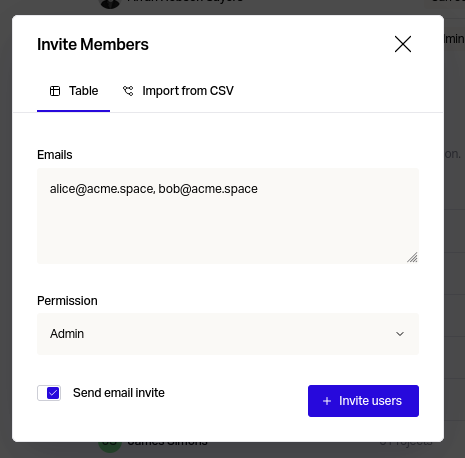
Click on "Invite Members".
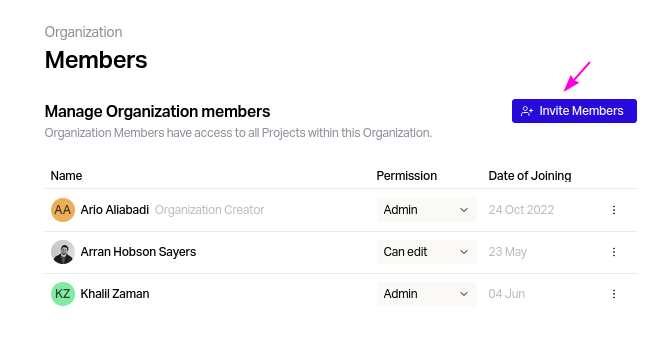
Only Organization Admins can invite members.
There are two options for inviting members - via text input, and CSV
Text input
This method is good for quickly inviting a small number of users to your organisation
CSV
This method is better suited to inviting a large number of users to your organization.
The CSV you upload should have the following format:
alice@acme.space,READ
bob@acme.space,WRITE
...
Permissions
Organization Members can have three different permissions: Admin, Write and Read.
Read users can view data, but cannot create, edit or remove any data in Projects (including members and settings).
Write users can do everything Read users can do, but can also create, edit and remove items in Projects. However, they cannot manage members, nor can they change Project settings.
Admins can do everything Write users can do, but can also manage users, as well as change project settings. They can also change Reviewers on Requirements, without approval from a Change Request.
We highly recommend having at least two Organization Admins
Offboarding
Organization Members can be removed from the same settings page that was used to add them as discussed above:
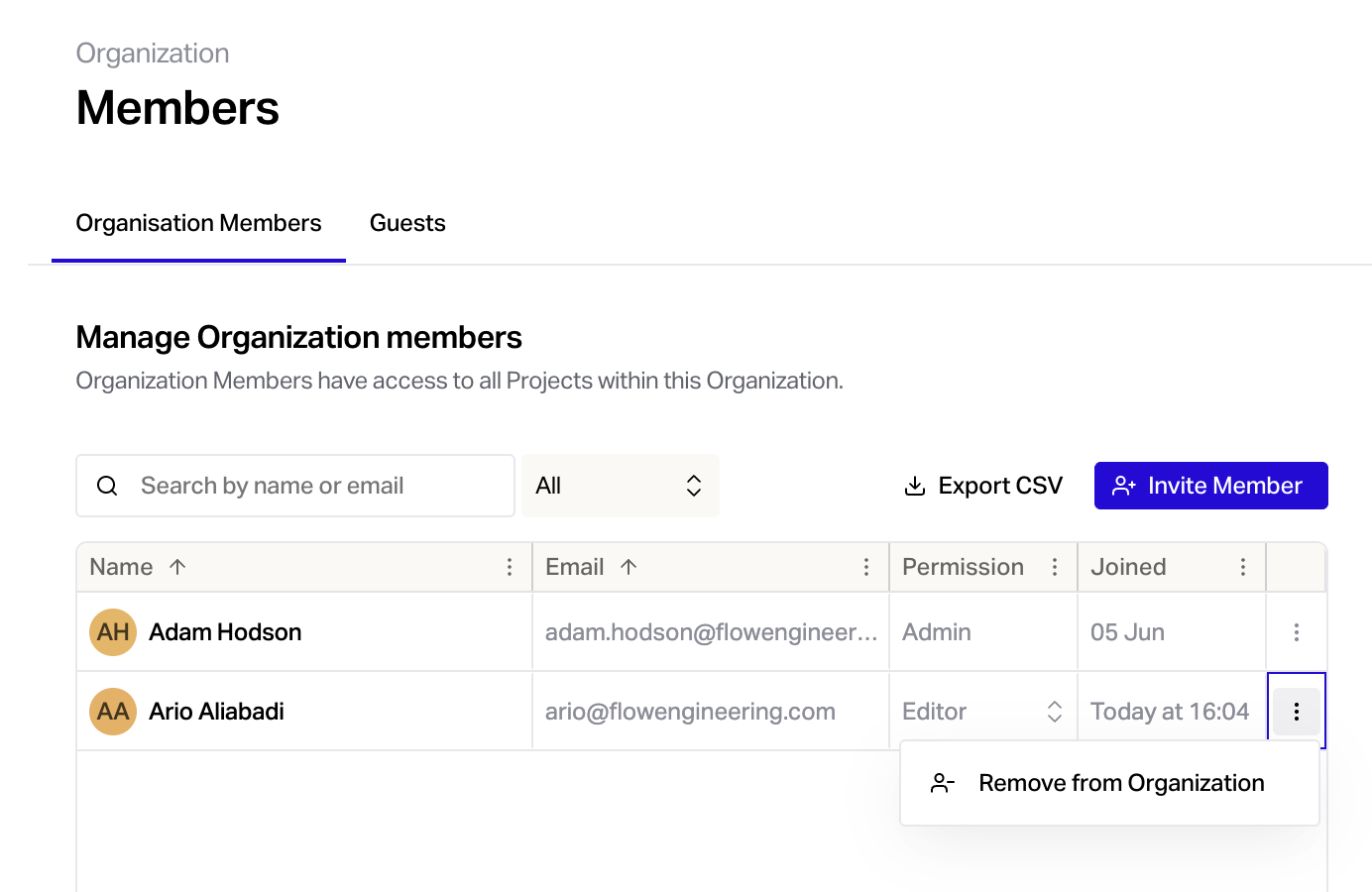
This is a destructive action.
When organization members are removed, any references to those users will be removed from data within the project. This includes things like requirement owners, reviewers, subscribers, and change history events.