File versioning in Documents
Last updated: February 9, 2026
Documents in Flow allow you to store actively evolving files with a full history of previous versions.
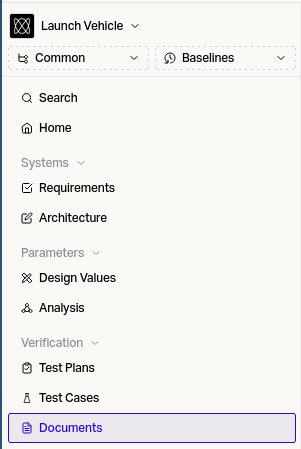
To use this feature in Flow, first go to the Documents tab in Flow under the Verification section.
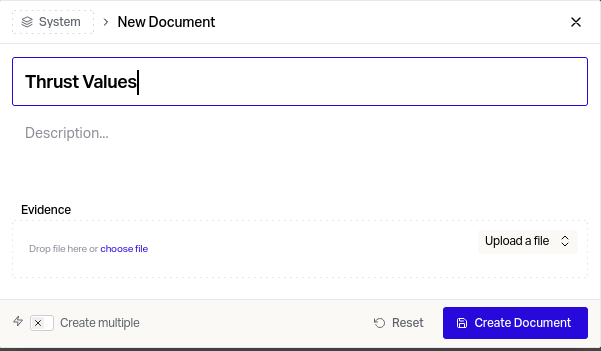
1) Create a new Document
2) Give it a Name
3) Do Not Upload a File in this modal as it will prevent version control
4) Click Create Document
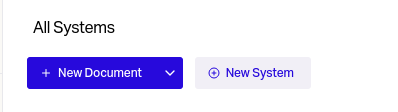
Now open your Document and add the file you wish to track in Flow. Extra context can be added in the description on the left.

When you need a new version, hover over the existing file and select the Pencil icon.
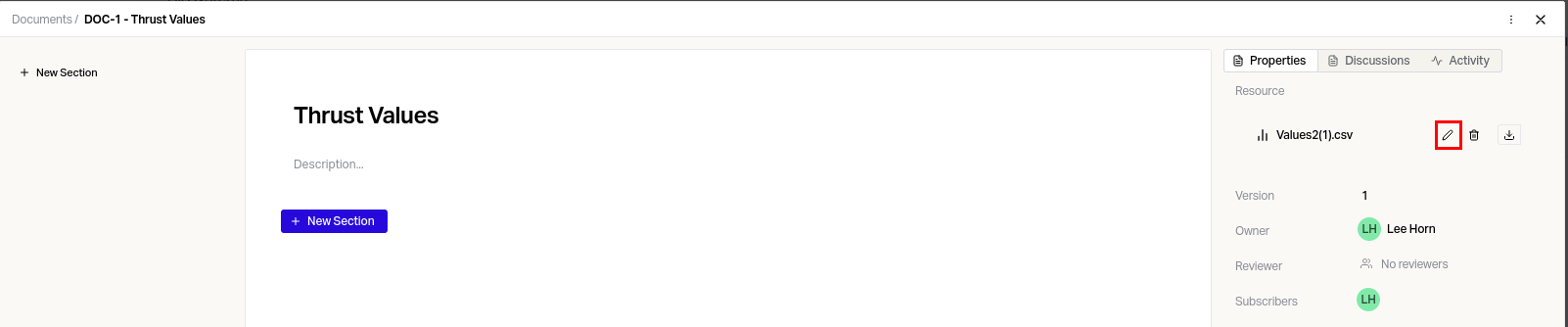
A rationale for changing the file can be added before saving.

After saving all current and historical versions will now be available to download.
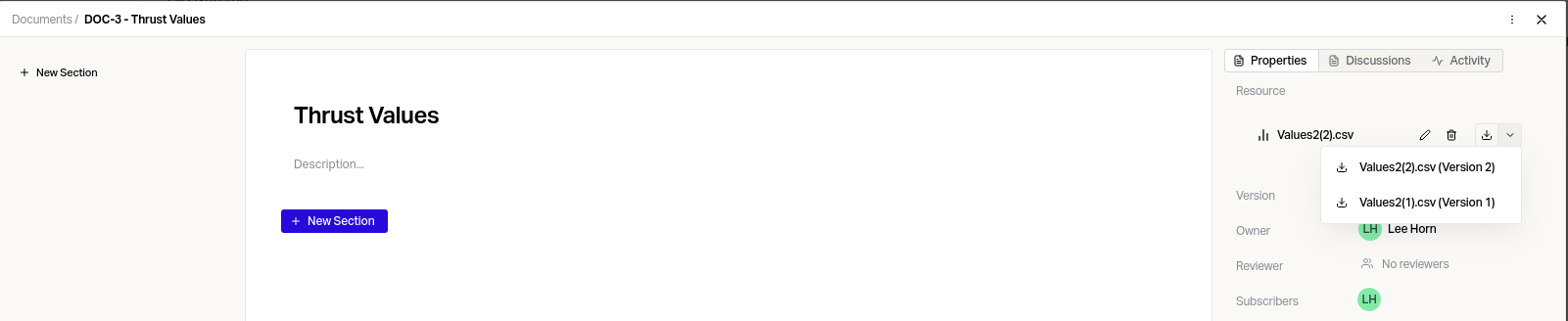
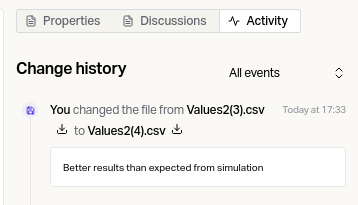
A full record of file changes and rationale supplied will also be available in the Change History for the Document under the Activity tab.
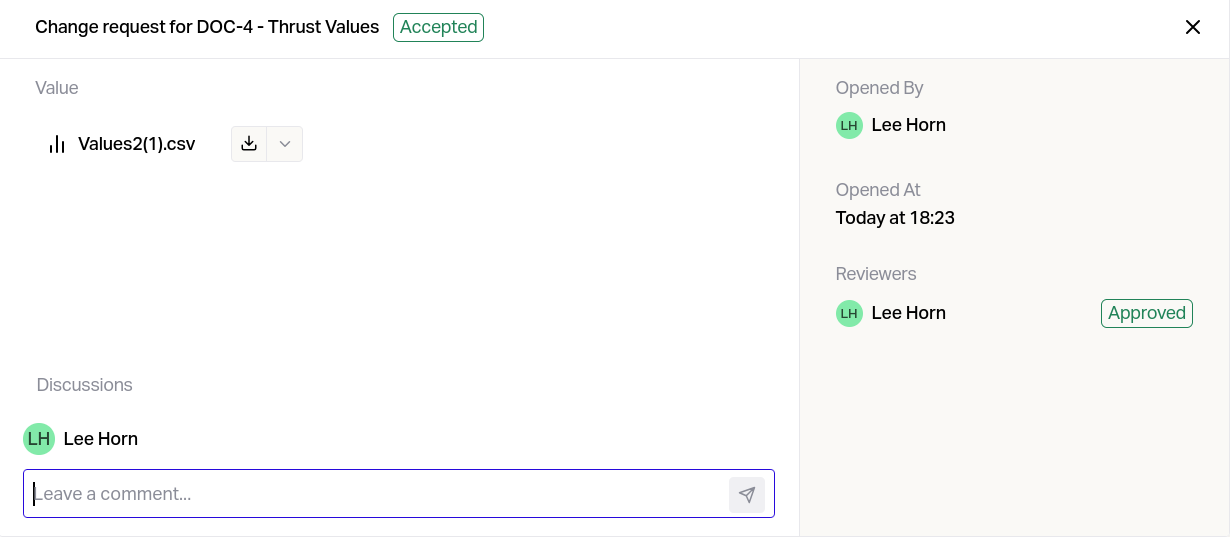
Preventing Unapproved File Changes
If the document has a reviewer set and is not in a draft state, the file will be covered by the review process.
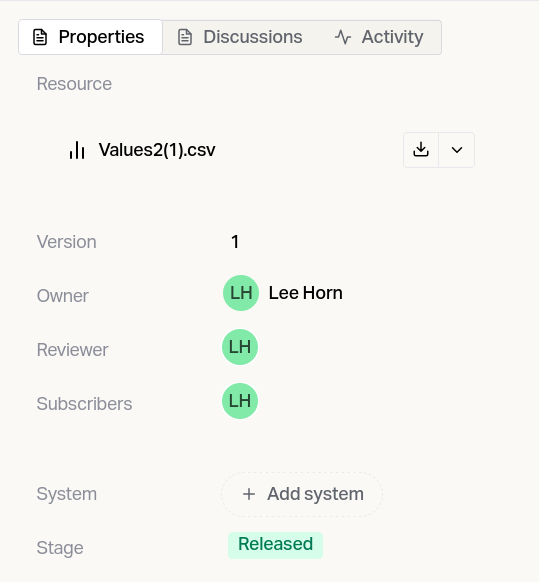
When attempting to change the file the new version will only be added to the document and version history if the review is approved. Before submitting a review the reviewer can see both the proposed new file and the original version.
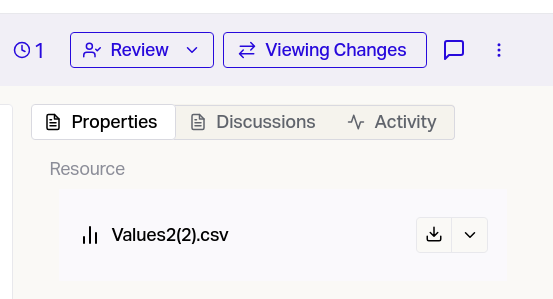
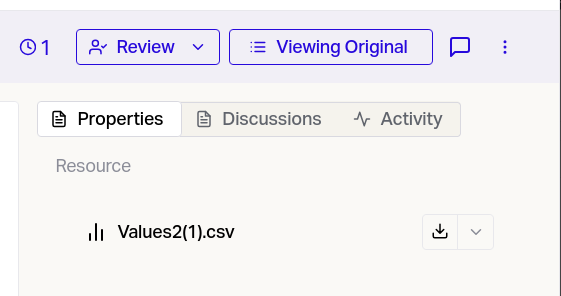
The change history will include both the change and who approved it.