Adding Custom Fields
Last updated: December 22, 2025
Flow has an incredibly flexible and extensive set of options for customizing what fields are available to fill in on each requirement, verification document or piece of design data. If you would like to store some data that Flow does not have a space for out of the box then you can set it up as a custom field.
Accessing Custom Field Settings
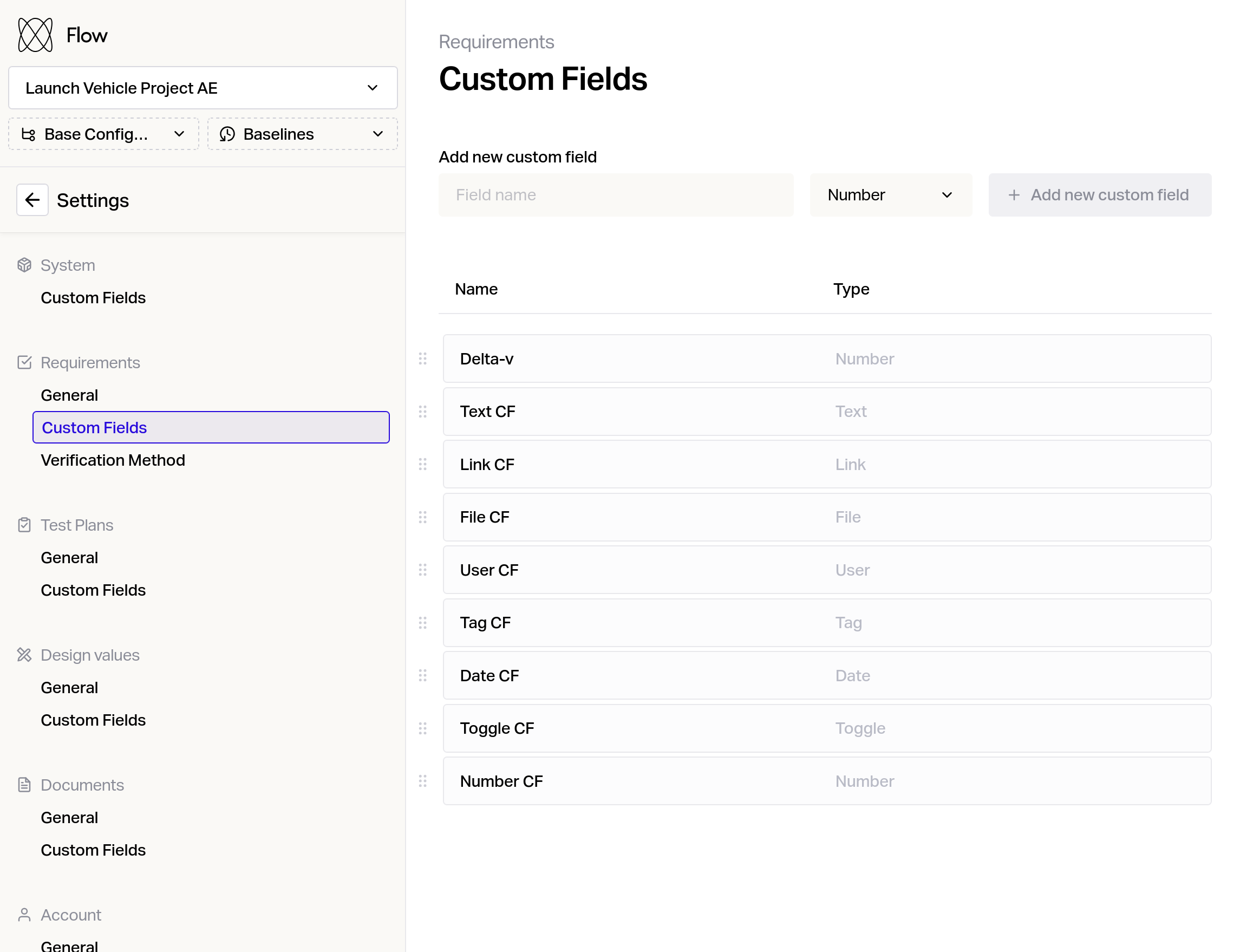
Custom fields are supported for Requirements, Systems, Test Plans, Test Cases, Test Runs, Design Values and Documents. You can access the settings for each through the settings page.
Creating Custom Fields
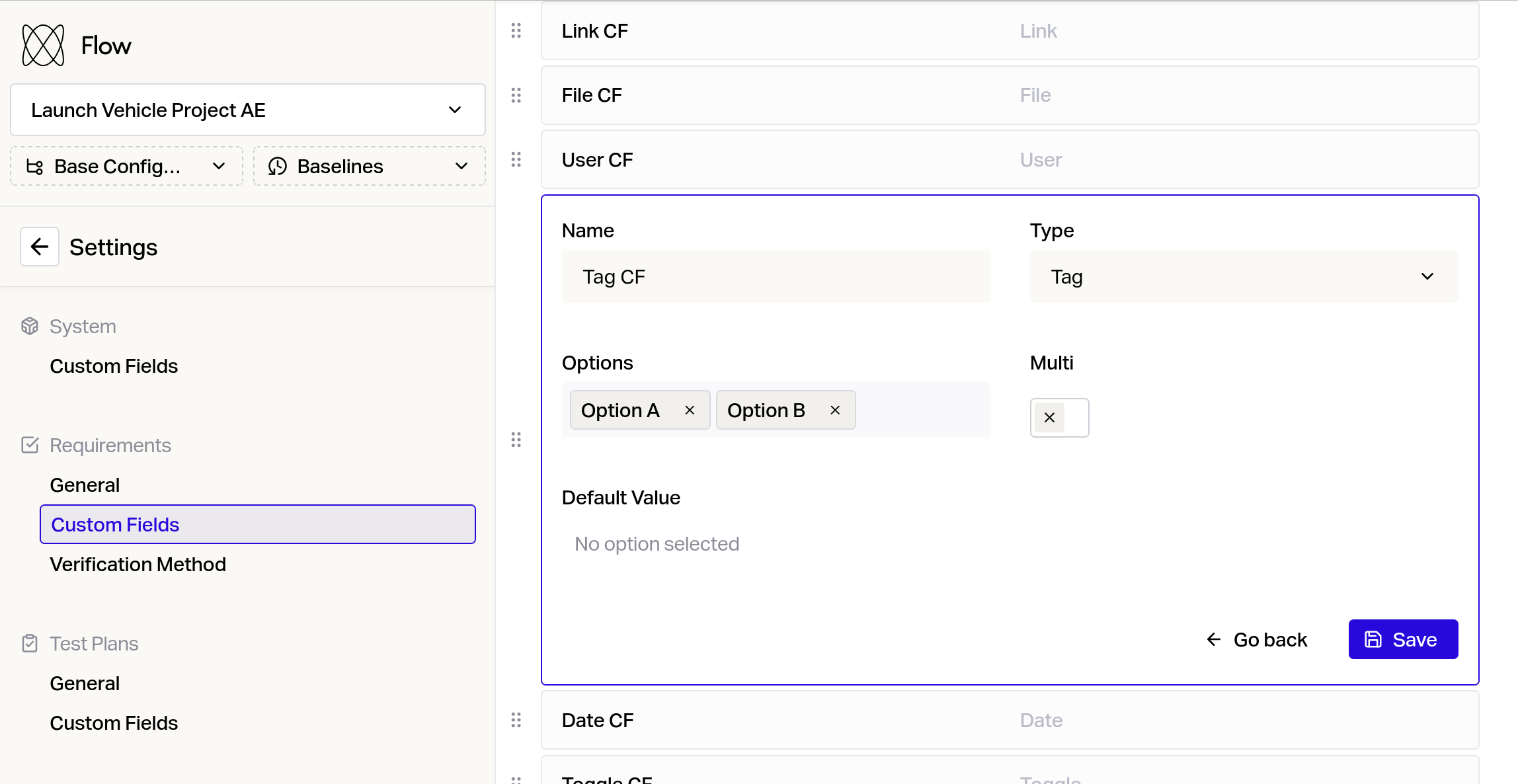
To create a new custom field, give it a name in the box at the top of the page, choose the type of data the field will store from the dropdown, and click Add new custom field.
Custom Field Options
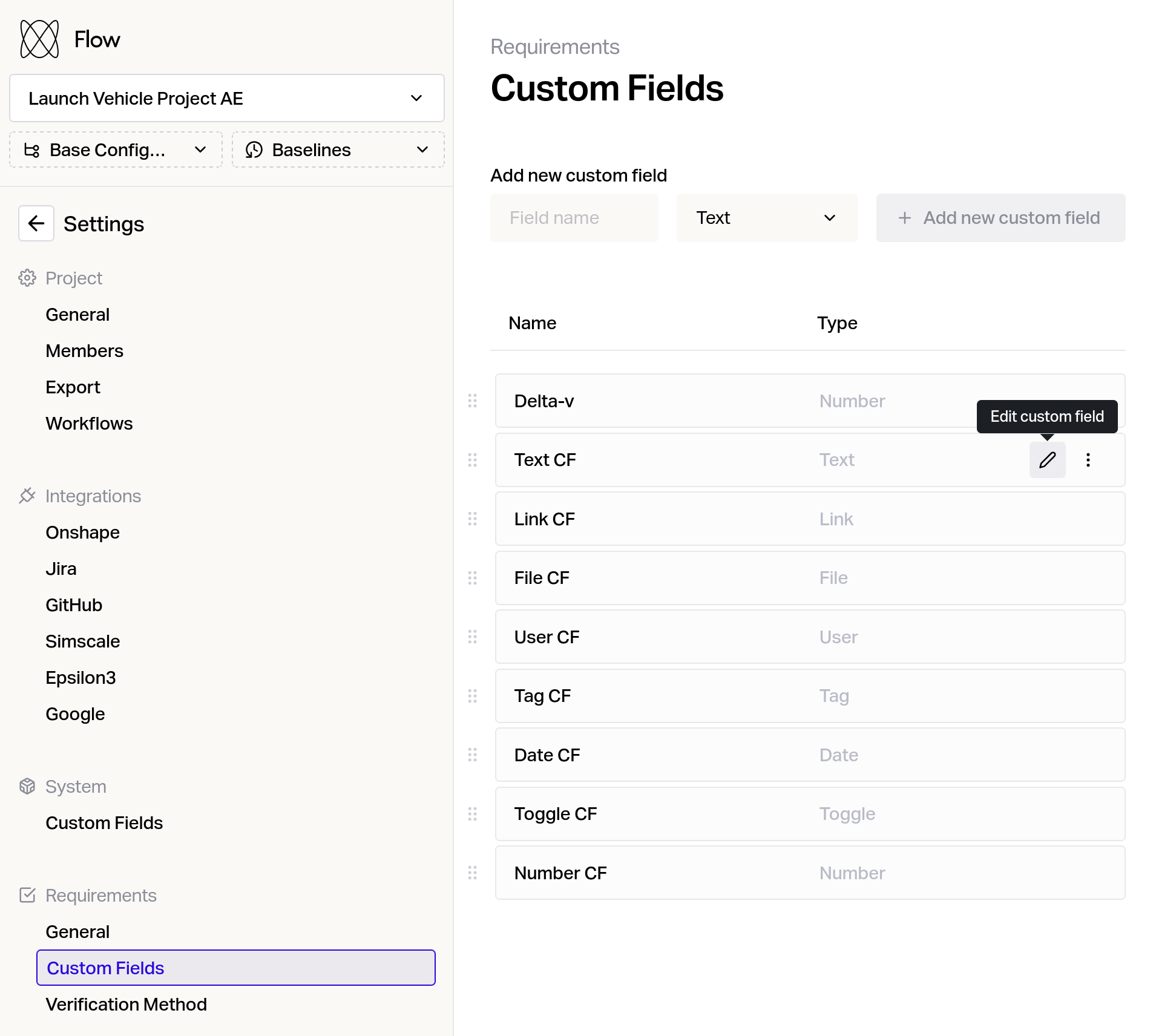
You can edit custom fields by clicking the 'Edit' button
Custom Field Types
Tag
A tag (or multiple tags) from a set of predefined options. Users can select one or more of, depending on how it's configured.
You can filter by custom Tags
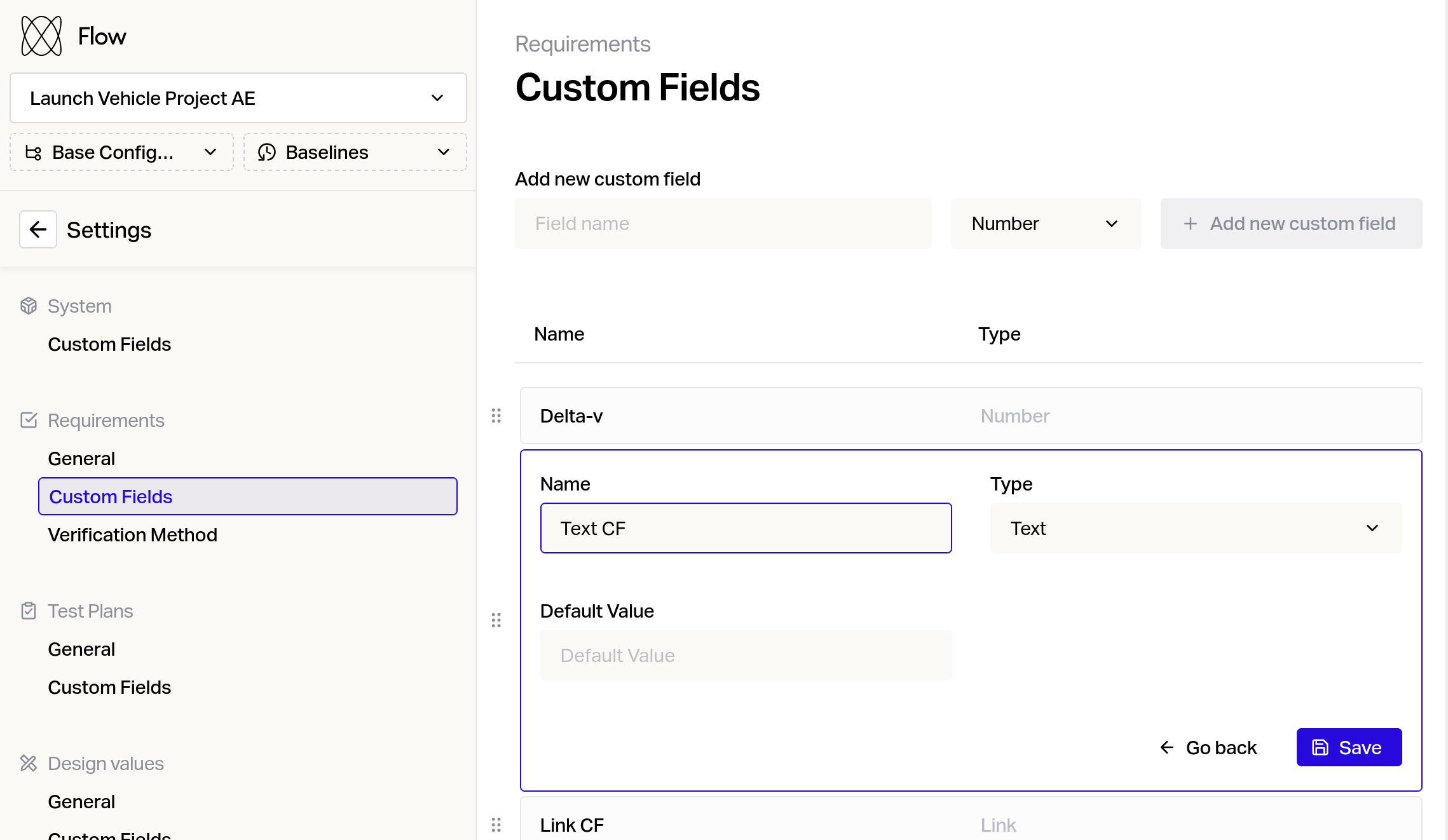
Text
A text field for any single-line or multi-line text (use shift-Enter for new line). A default can be set.
Text fields support rich formatting, including headings, code blocks and tables.
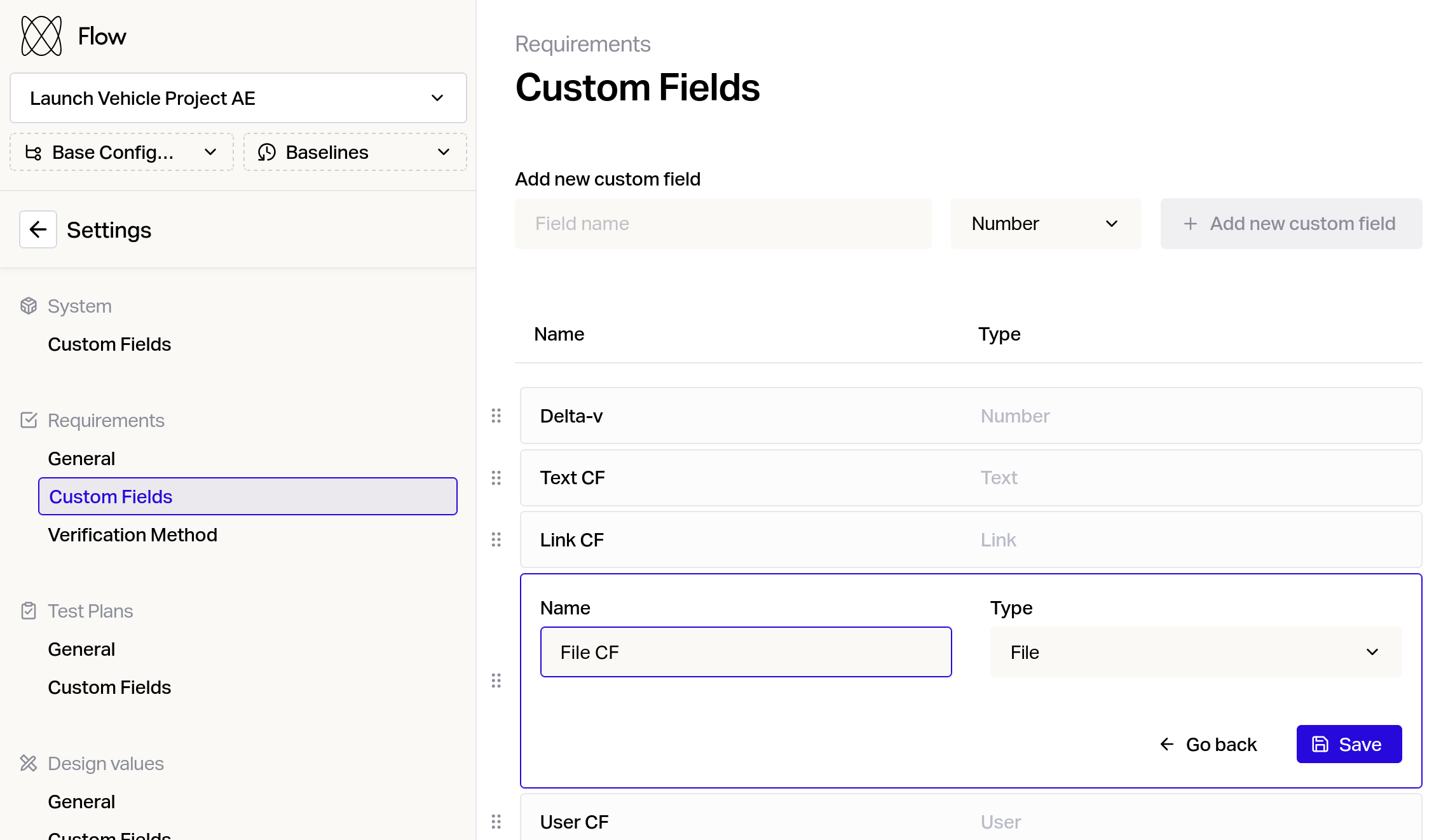
File
An attachment to be stored on the Flow platform
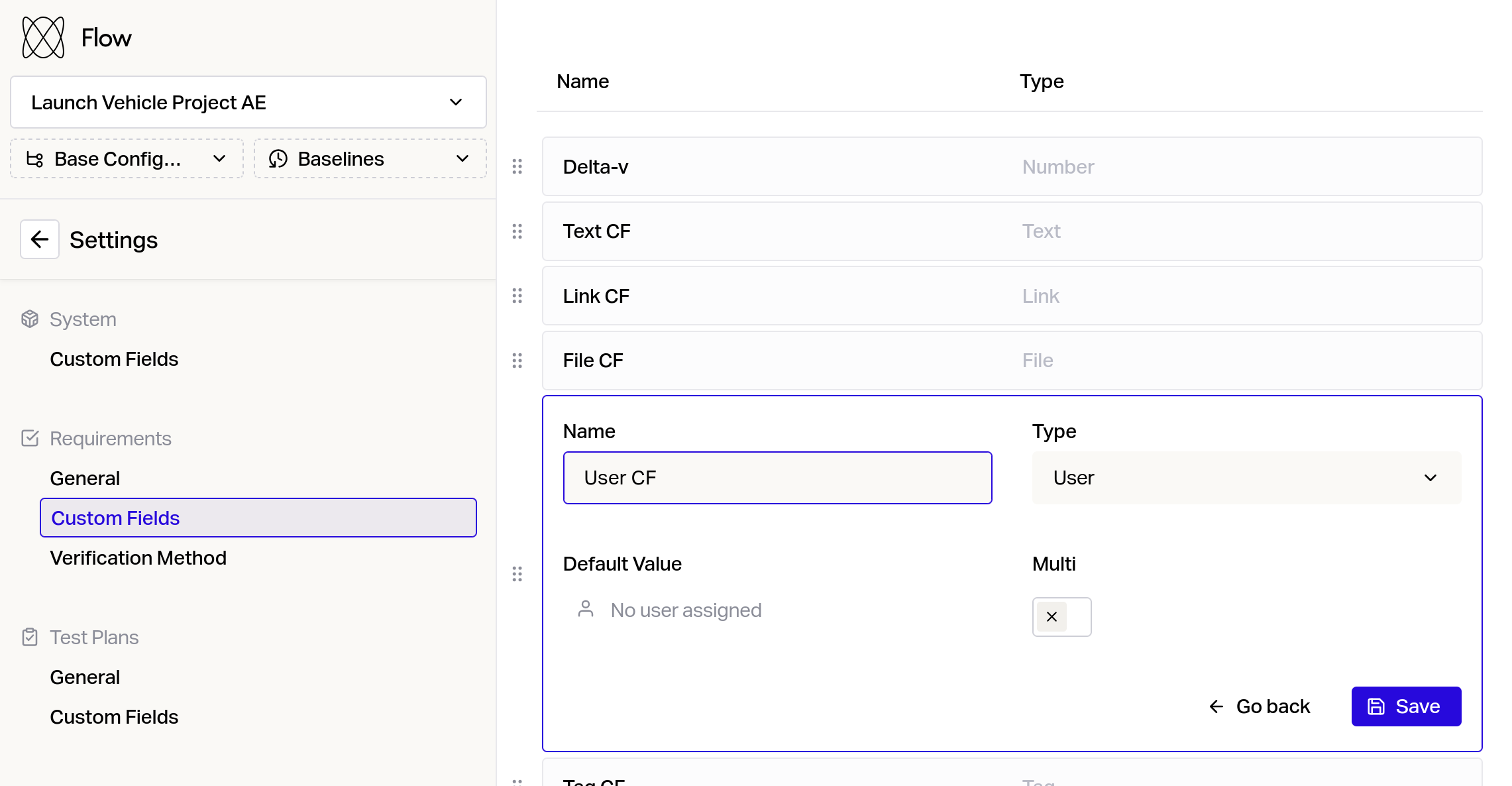
User
A selectable dropdown of one or more of the existing team members in your Flow project
Enable 'Multi' to allow multiple users to be selected
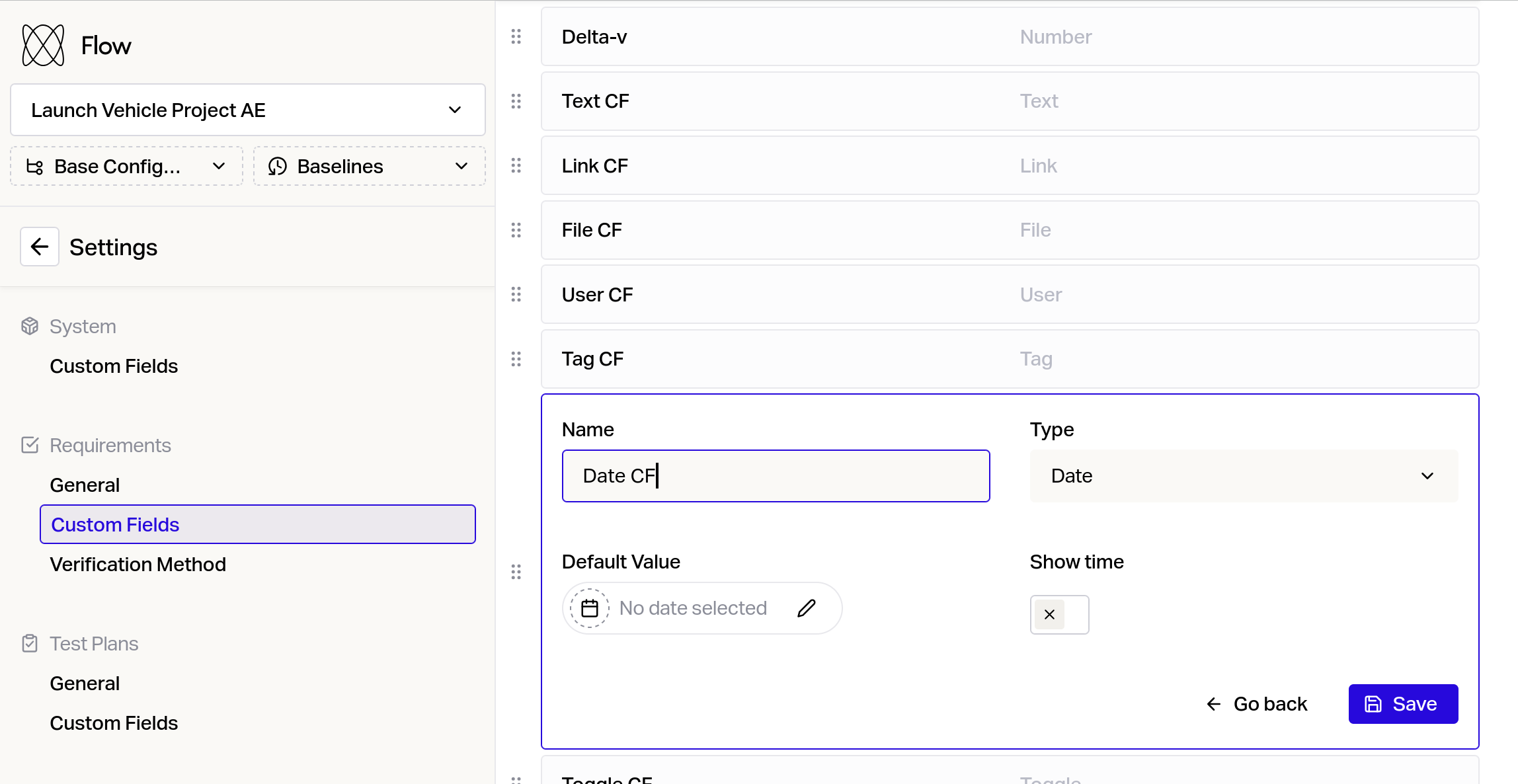
Date
A selectable date. Can be either a date with or without a time.
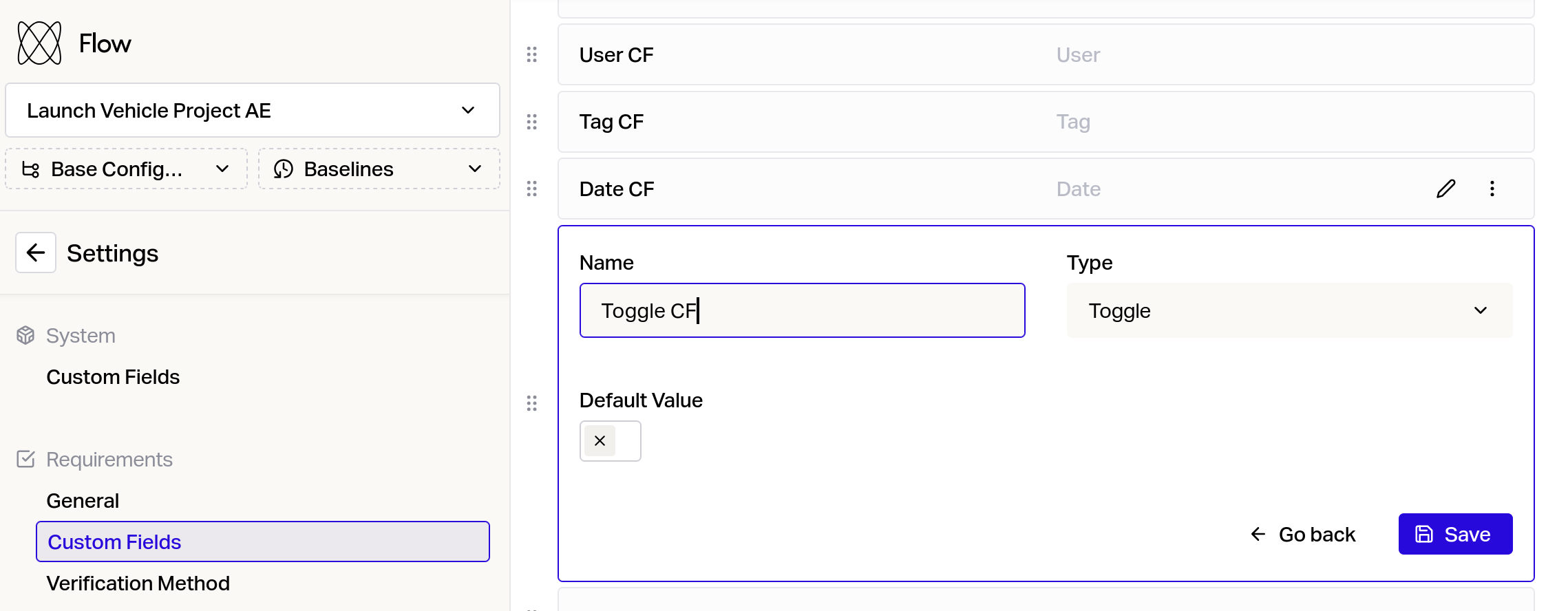
Toggle
A boolean check box
Link
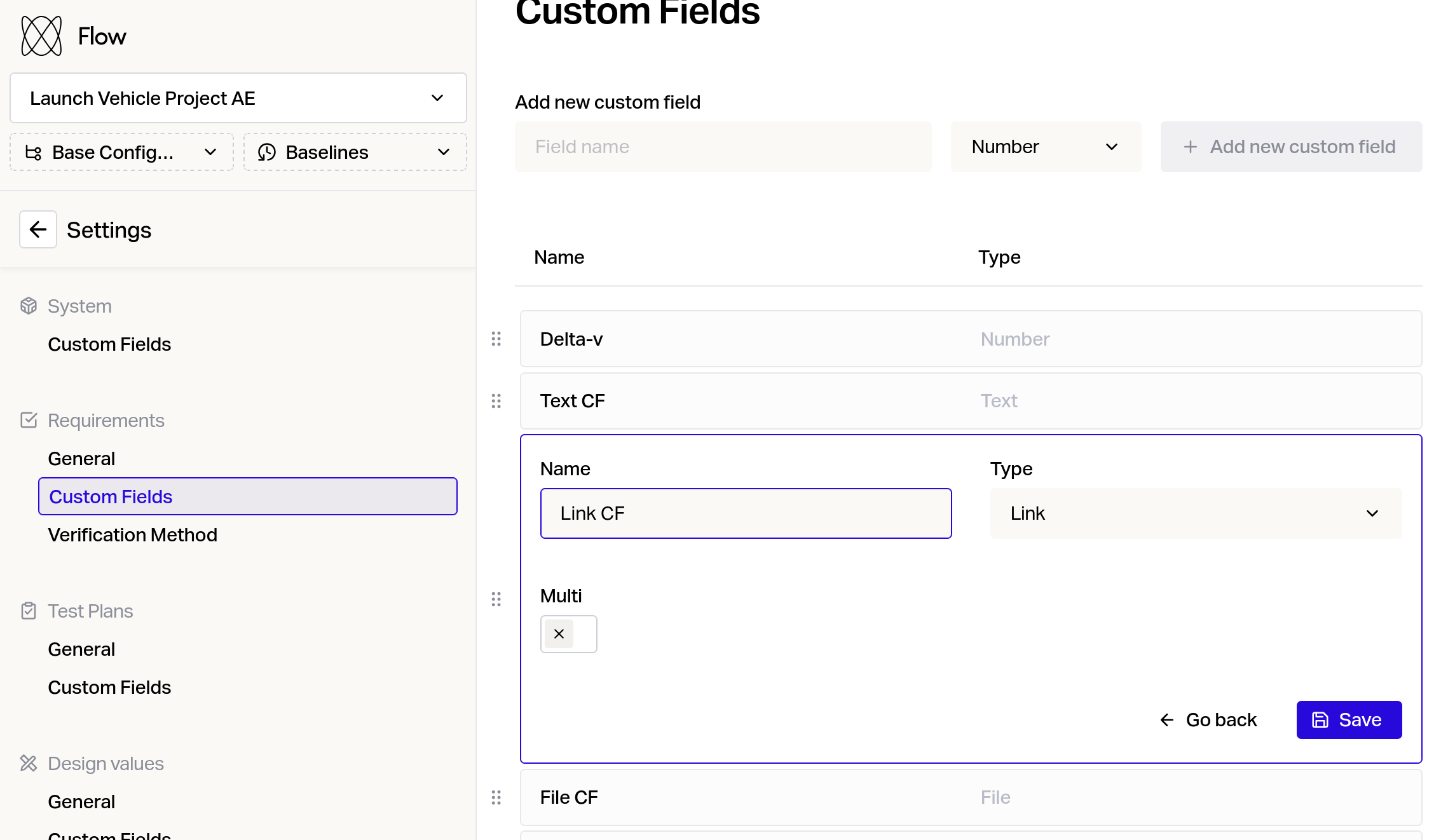
A link to any other item in Flow for example a value or another requirement
Enable 'Multi' to allow multiple items to be linked
Number
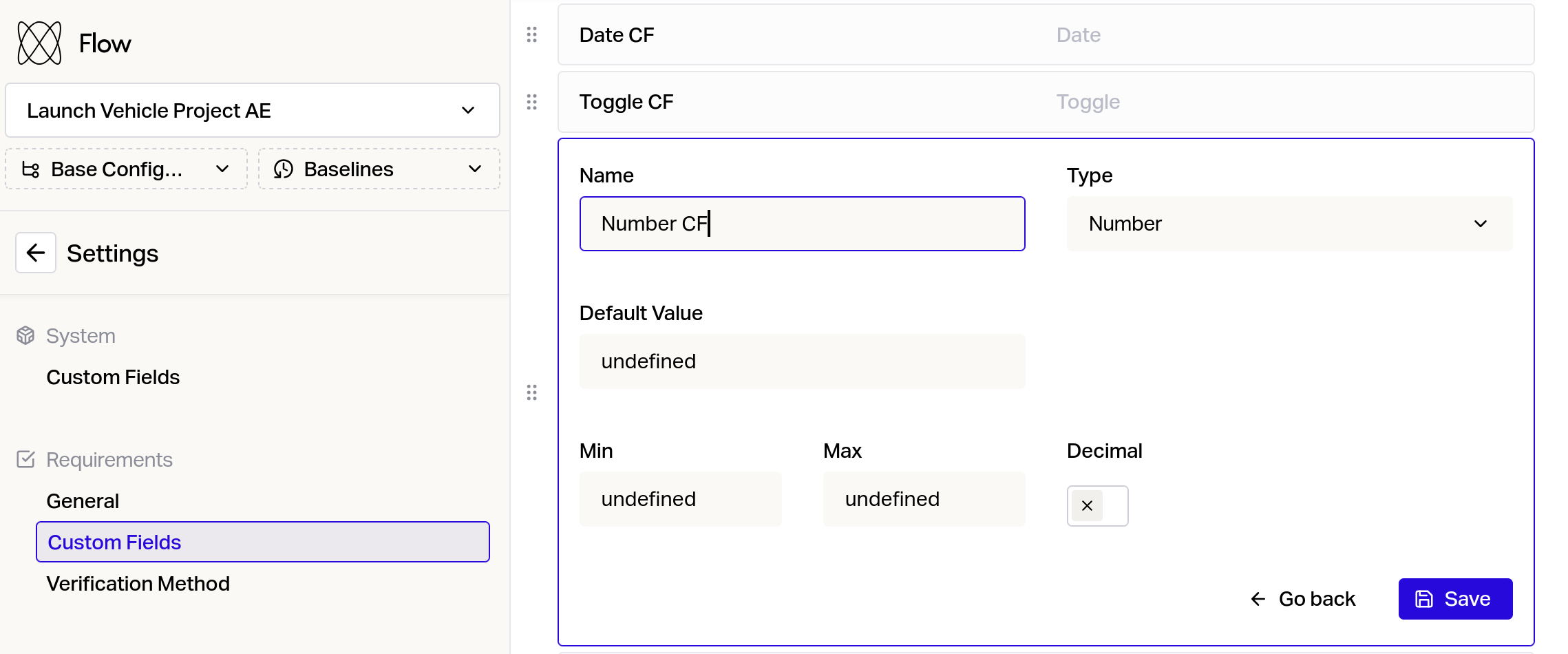
You can specify a default value, minimum value and maximum value. You can also specify whether it's a floating point number, or an integer via the Decimal option.
Adding Data to Custom Fields
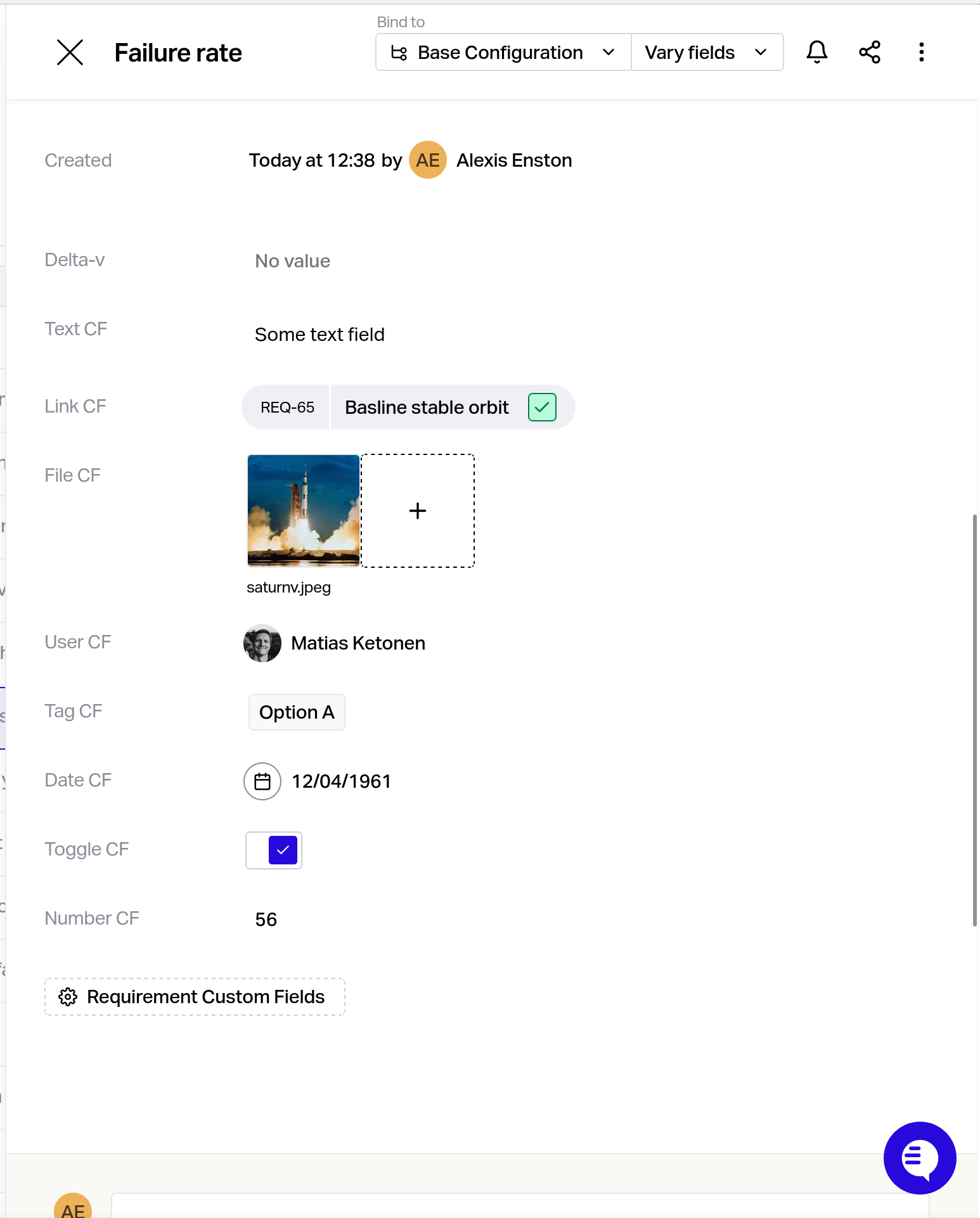
Once you have added your custom fields they will show up at the bottom of the details pane for the relevant data type.