Configuration Management
Last updated: December 13, 2025
Introduction
Keeping a comprehensive list of requirements for a complex engineering project up to date can be a daunting task. When you are dealing with keeping the requirements of multiple related configurations of your product up to date the challenge is magnified.
Flow's advanced tools for managing configurations can help. A typical example of where configurations come in is when you are drafting the requirements for a car. You will have one set of requirements for the coupé version and one set of requirements for the convertible:
80-90% of the requirements across these two configurations will be common between the two (everything to do with powertrain and interior for example)
10-20% will be unique to the convertible version (everything to do with the electric roof mechanism and fabric roof)
10-20% will be unique to the coupé (everything to do with the metal roof)
Flow can help you keep the common requirements continually in sync across the two configurations whilst allowing the configuration specific requirements to vary.
Getting Started
To get started with configurations, click the configurations dropdown at the top left of the page.
Press the plus icon to create a new configuration.
Type a name for your new configuration and hit Enter.
Select the check box to the left of your new configurations name to select it.
There are two different types of requirements you can have in a Flow Project:
Common requirements that are shared across all of the configurations in a project.
Configuration requirements that are specific to only the configuration(s) they are bound to.
Creating Common Requirements
When creating new requirements, there is a configuration selection dropdown at the top right of the modal. When Common Configuration is selected, the requirement will be shared across all of your configurations.
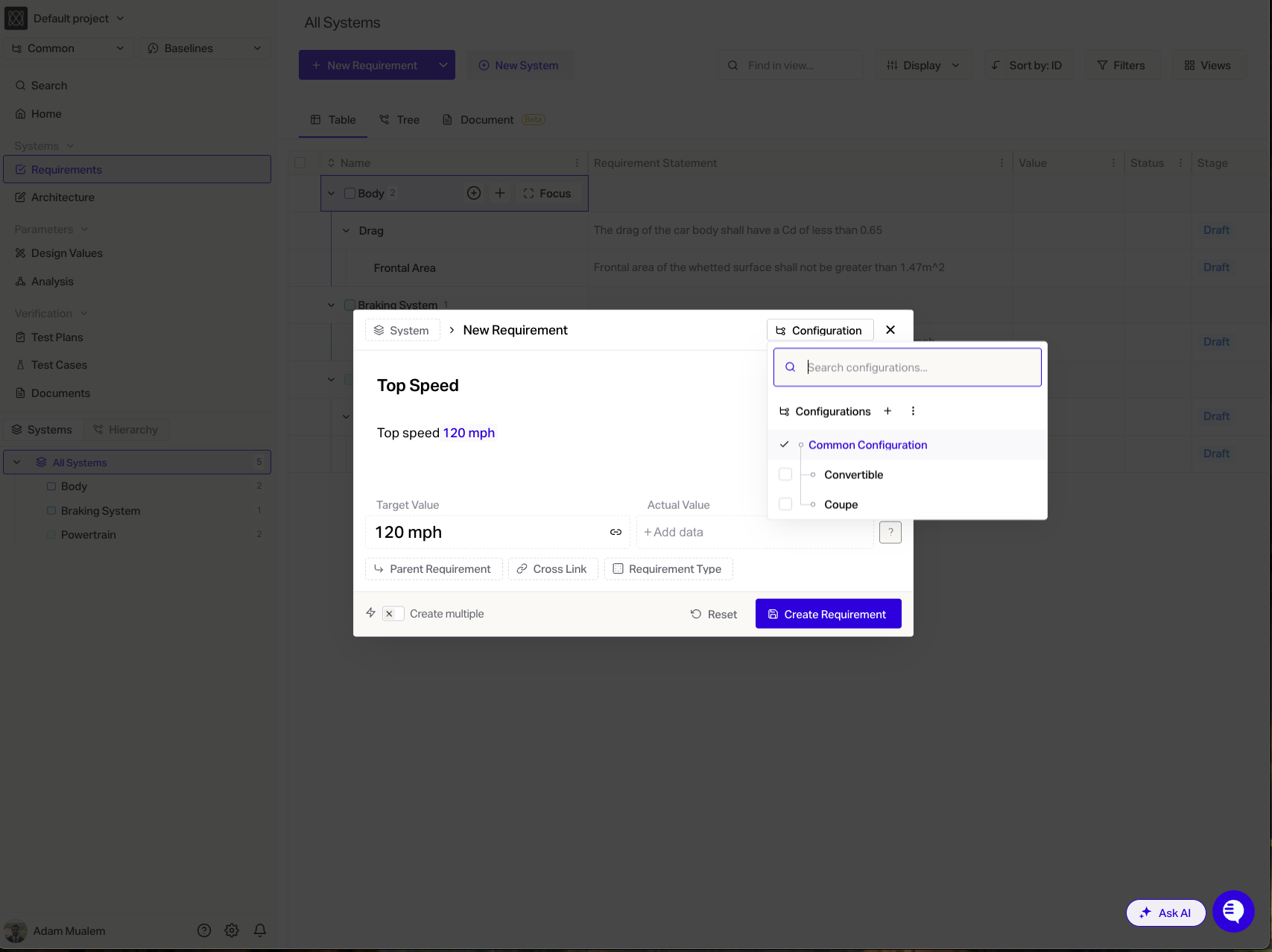
If I name this new requirement Top Speed and create it under the Common Configuration, you will see that as I flip between the configurations, REQ-1 Top Speed is present in both.
Creating Configuration Requirements
By selecting one or multiple configurations in the dropdown, the requirement will only appear when it's corresponding configuration is selected.
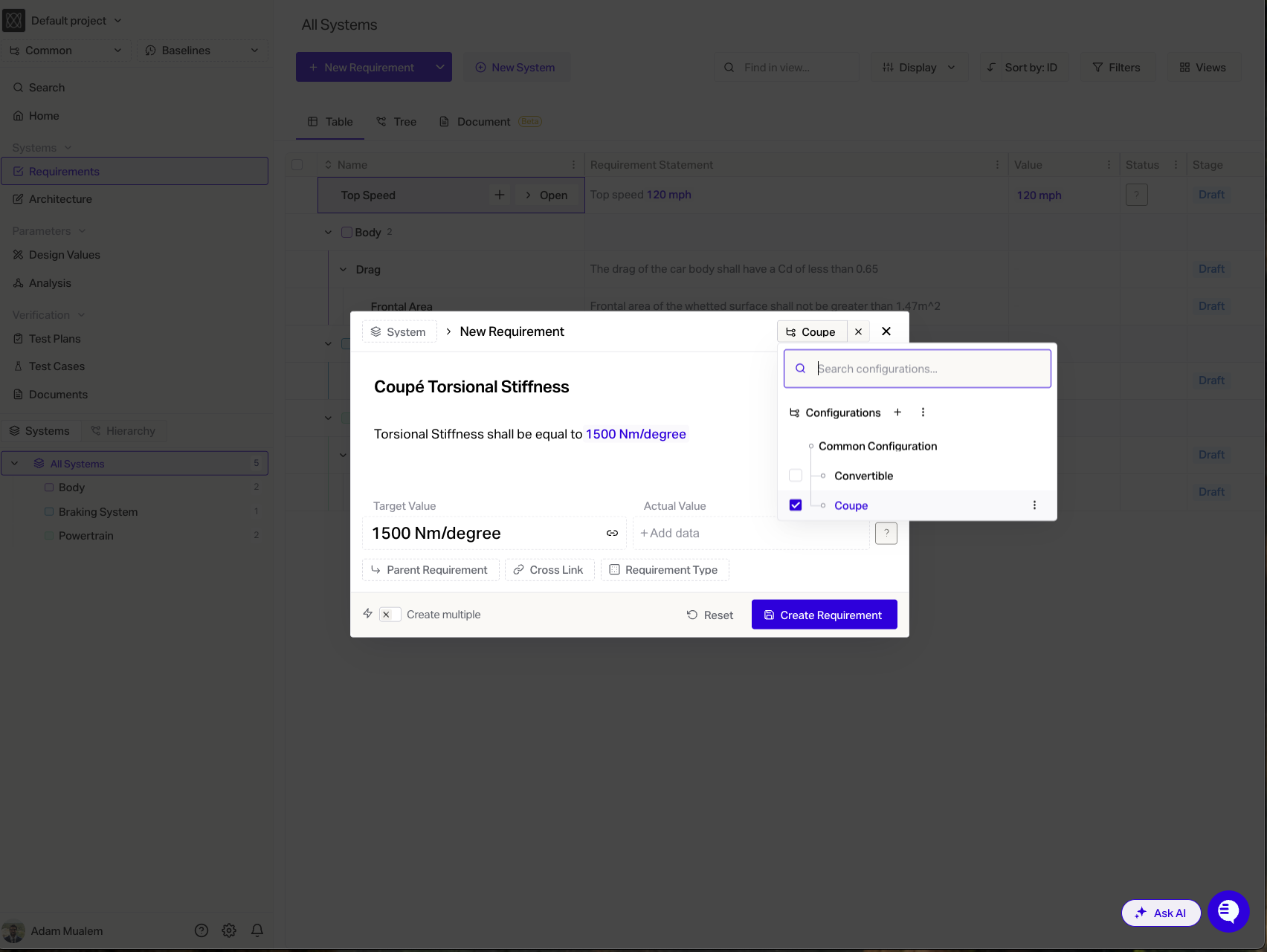
If I name this new configuration requirement Coupé Torsional Stiffness and flip between the configurations you will see that REQ-2 Coupé Torsional Stiffness is only present in the Coupé configuration.
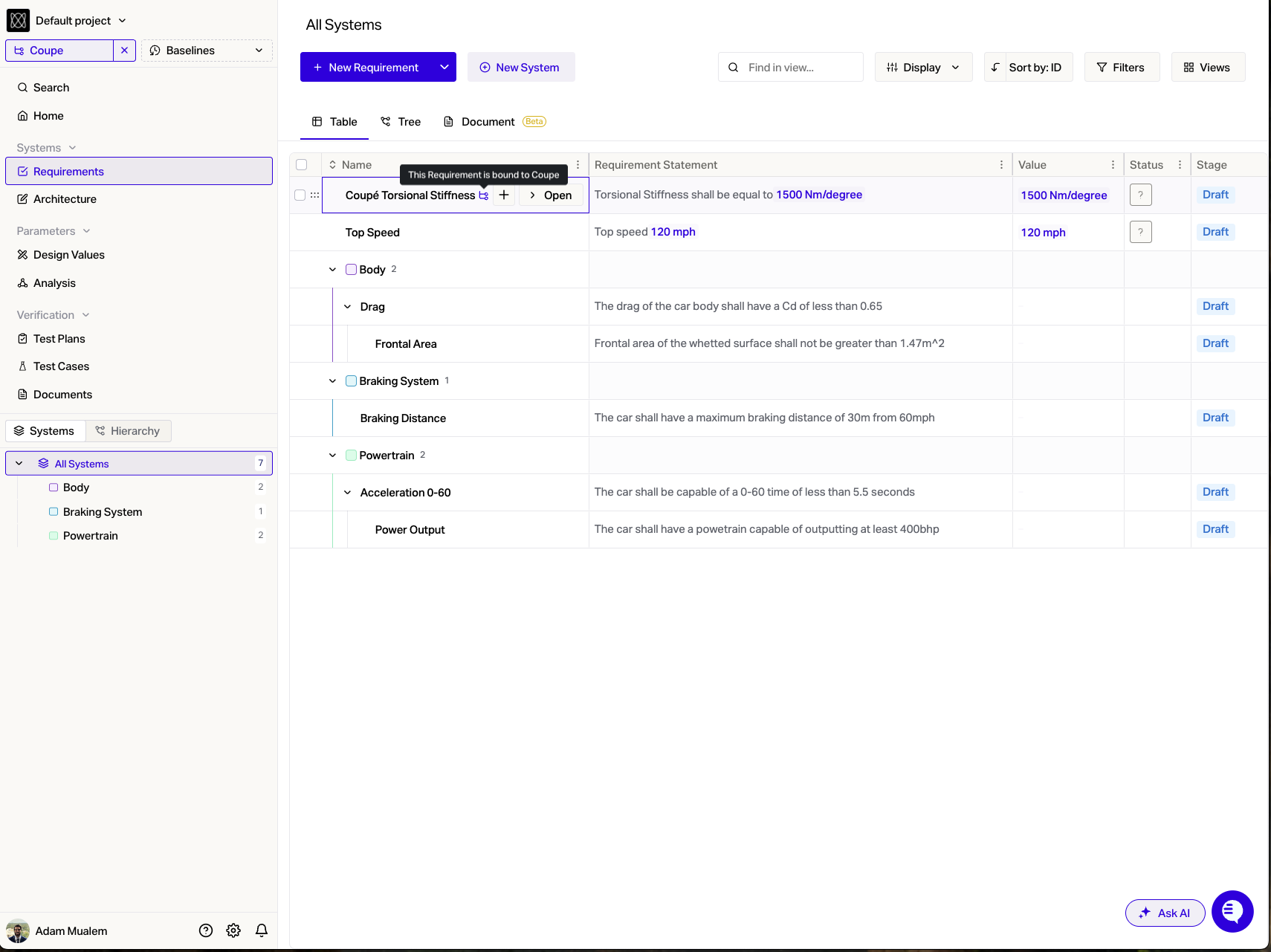
This configuration requirement will have an icon indicating that it is specific to this particular configuration.
Binding and Unbinding Requirements
If you have a Normal requirement that you would like to convert into being configuration specific then go into the details pane, click the edit icon next to Configuration property and select your desired configuration(s). This will turn the requirement into a Configuration requirement that is bound to the selected configuration(s). It will no longer be visible in any of your other configurations.
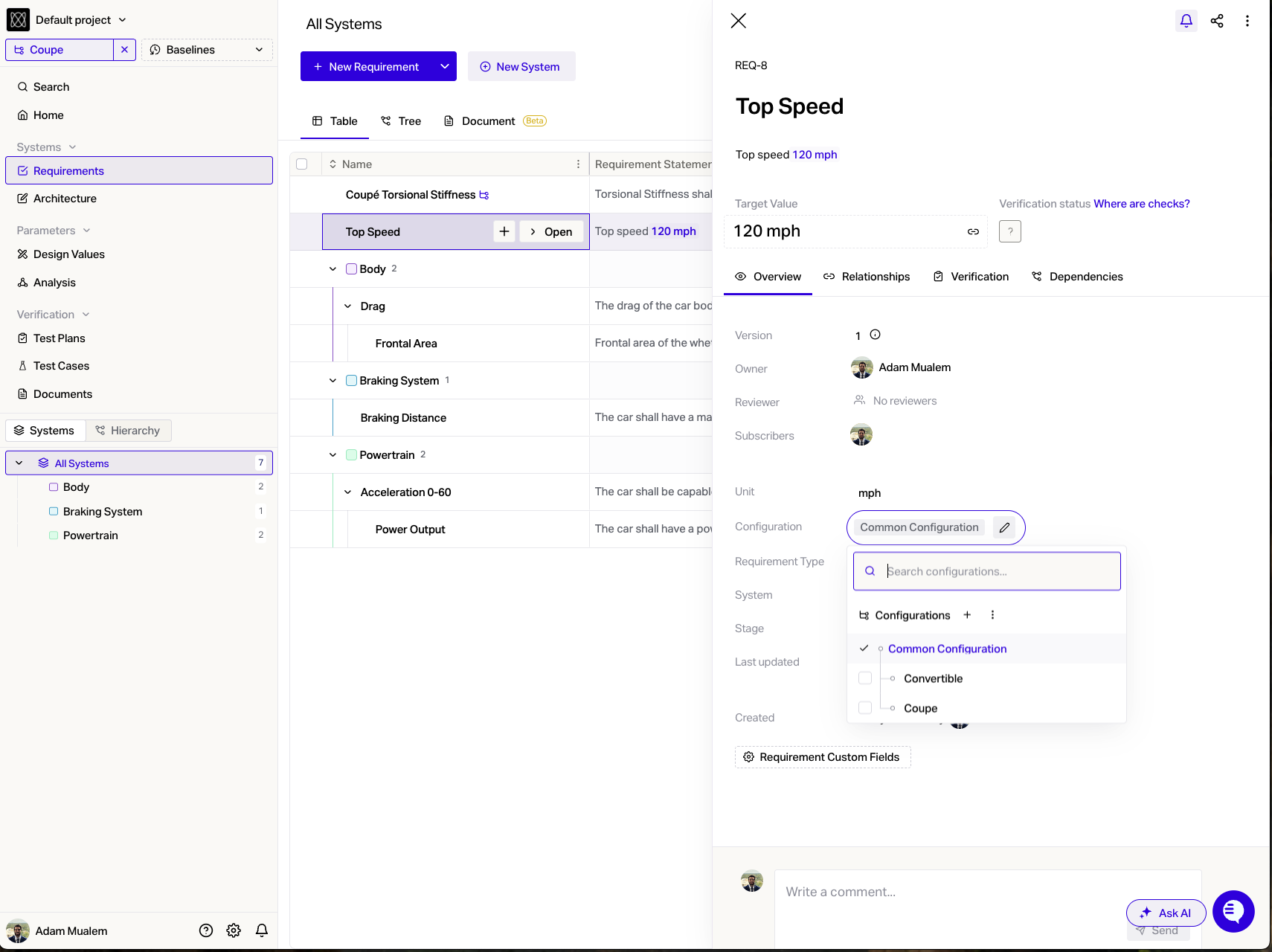
If you have a Configuration requirement that you would now like to be shared and made present across all configurations then go into the details pane, click the edit icon next to Configuration property and select Common Configuration. This will turn the requirement back into a Common requirement that is visible in all of your configurations.