Importing Requirements Into Flow
Last updated: March 10, 2026
Give yourself a head start with Flow by importing your existing requirements from either a CSV file or an Excel Spreadsheet.
Accessing the Requirements Importer
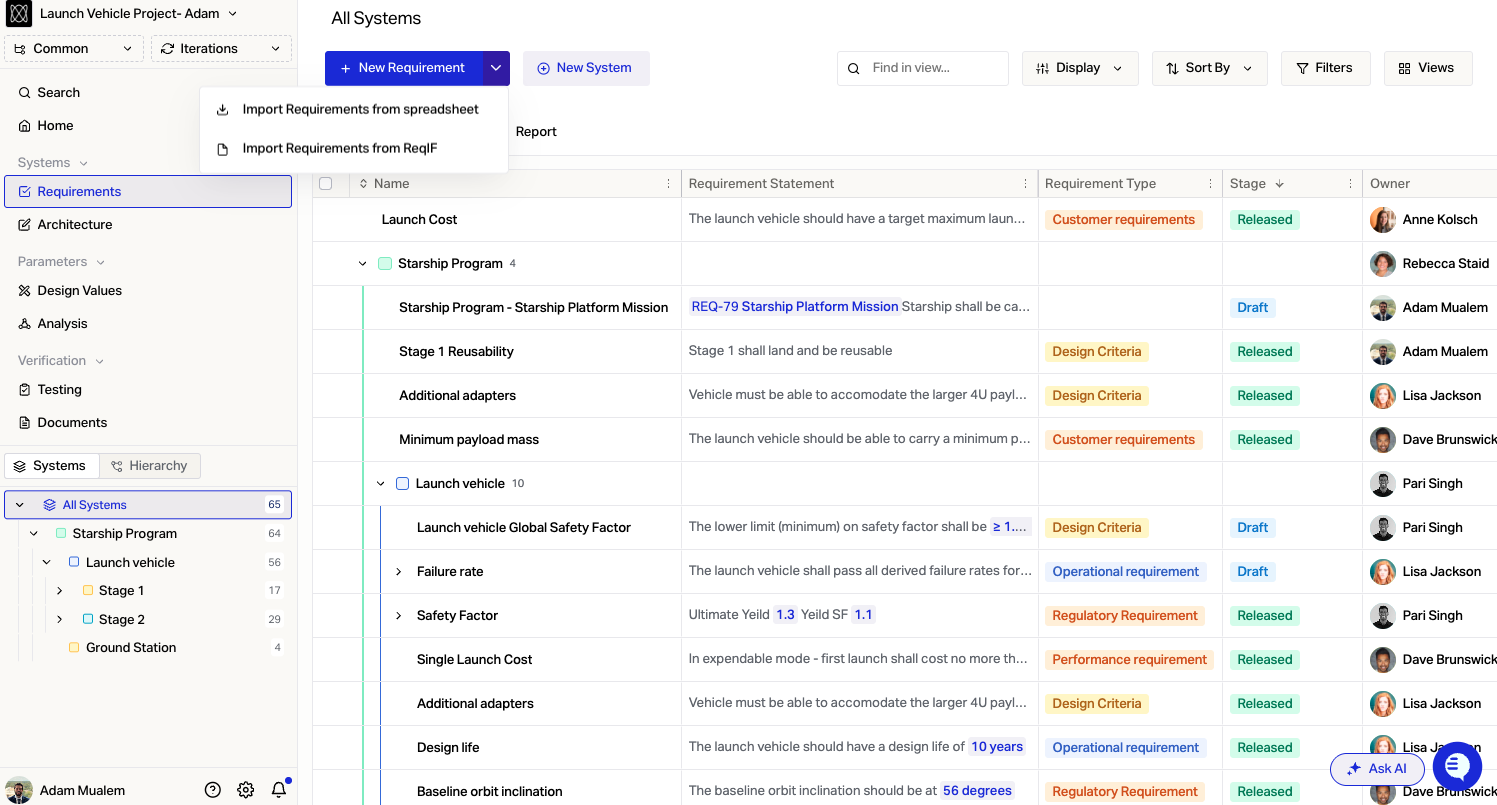
Go to the Requirements section of Flow, click the dropdown next to the New Requirement button and select Import requirements from spreadsheet.
Drag your sheet into the dropzone at the top of the dialogue box to upload your file. Flow will accept .csv, .xlsx, and .xlsm files.

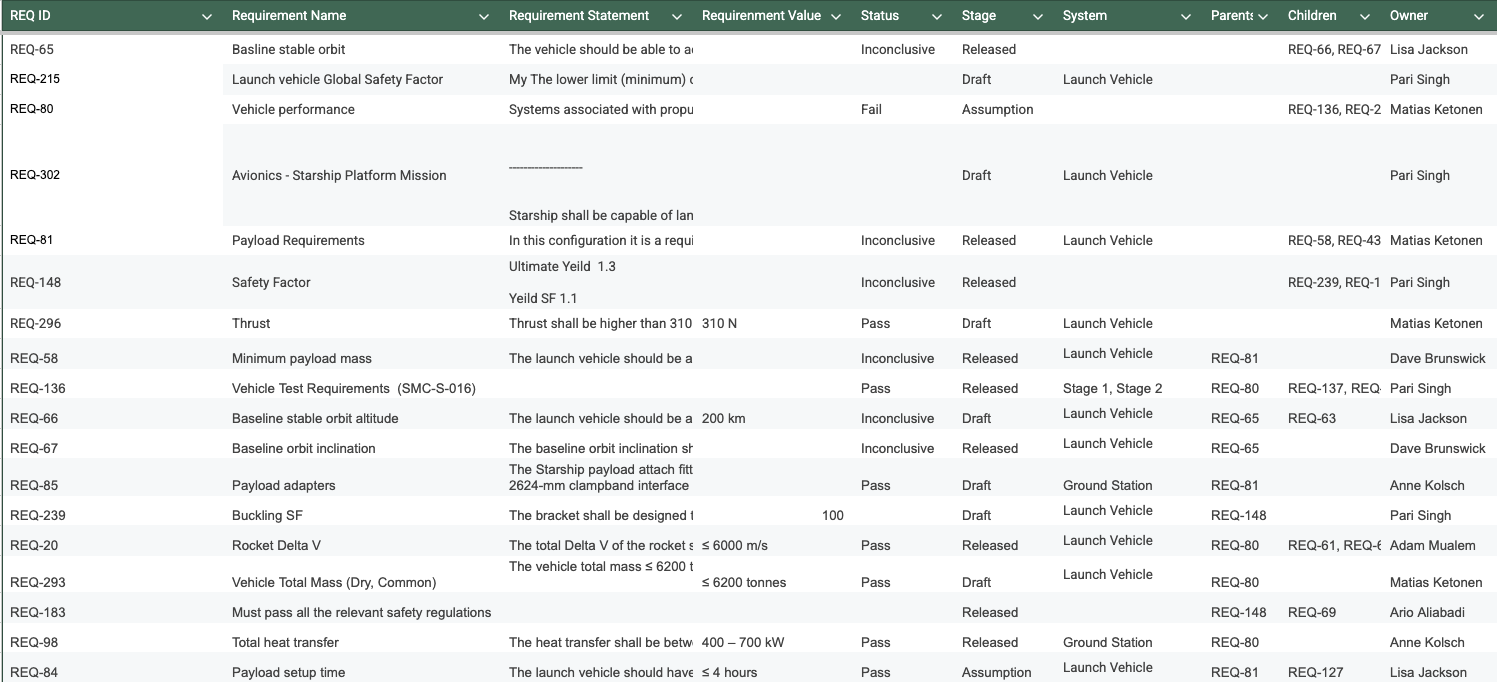
The spreadsheet must contain a column corresponding to the Requirement Title, and a column mapped to Requirement Statements. The following attributes may also be imported from other columns:
Requirement ID
Owner
Units
Requirement Type
Stage
Any Created Custom Fields
Relationships between Requirements may be imported via columns:
Parent ID(s)
Cross Link ID(s)
System(s)
Note: IDs must be unique. No merged cells or blank rows allowed
Here is an example of what a spreadsheet to import into Flow may look like:
Understanding IDs
The importer uses Requirement IDs for:
Creating links between requirements (e.g. parent-child).
Skipping re-importing the same requirement twice.
There are two types of ID:
Flow ID
This is generated in Flow, by Flow.
The Flow ID of each requirement can be viewed under the ID column in requirements table view.
Import ID
Id is optional. If you do not want to import any links or hierarchy between your requirements, you do not need to specify it.
Must be unique for each requirement. These are specified by a user at import time.
It is done by mapping a column of the uploaded file to the ID field in the importer.
After an import, the Import ID of entities can be viewed under the Import ID column of table view.
Creating links
The importer facilitates linking imported Requirements to other Requirements within Flow by setting the ID field in spreadsheet. By referencing this ID in subsequent columns, such as Parent ID or Cross-link ID users can establish connections between different entities.
For example, a Requirement can be linked to its Parent Requirement or Cross-Linked to another Requirement by specifying IDs in the appropriate columns.
Multiple links can be created using a comma-separated list of IDs such as
"REQ-66, REQ-67, REQ-183".
Note: Links can be defined to IDs already in Flow or within the file being imported. If requirements are referencing Parent IDs, please ensure the parent requirements are defined in a row above.
Systems
When importing data, you can link imported items to Systems in two ways depending on where you initiate the import.
Importing from the project view
Use the Systems column in your file to specify which Systems each item should belong to. Map this column to the Systems field during import.
For example, if a requirement belongs to two Systems named Alpha and Beta, enter Alpha, Beta in that row's Systems cell.
If a System with the specified name already exists in Flow, the imported item will be linked to it. If no match is found, a new System with that name will be created.
Importing from a System or Design Unit view
When you open the importer from within a System or Design Unit view, all imported items are automatically linked to that System. The Systems field is unavailable during this import -- you will see which System you are importing into in the sidebar and on the confirmation screen before submitting.
Mapping the Header Row
Within the Requirements section of the importer, click the target icon to visually select a row from the spreadsheet that contains your column headings.
The importer will start reading Requirements from the row directly below this. If your Requirements spreadsheet contains multiple tables, select the correct sheet to import first.
Mapping Columns
Use the Column mapping functionality to specify which columns from the spreadsheet should be pulled from to populate each field in Flow.
Flow fields are on the left
Spreadsheet columns are on the right
Continue to add mappings using the Add property button until you have a mapping for every column in your spreadsheet that you would like to bring into Flow.
If there is not a field in Flow out of the box for the type of data you are trying to import, then you can add a new Custom Field in Flow.
Press the "Generate Column" button to have Flow assign columns automatically.
Importing Other Data Types
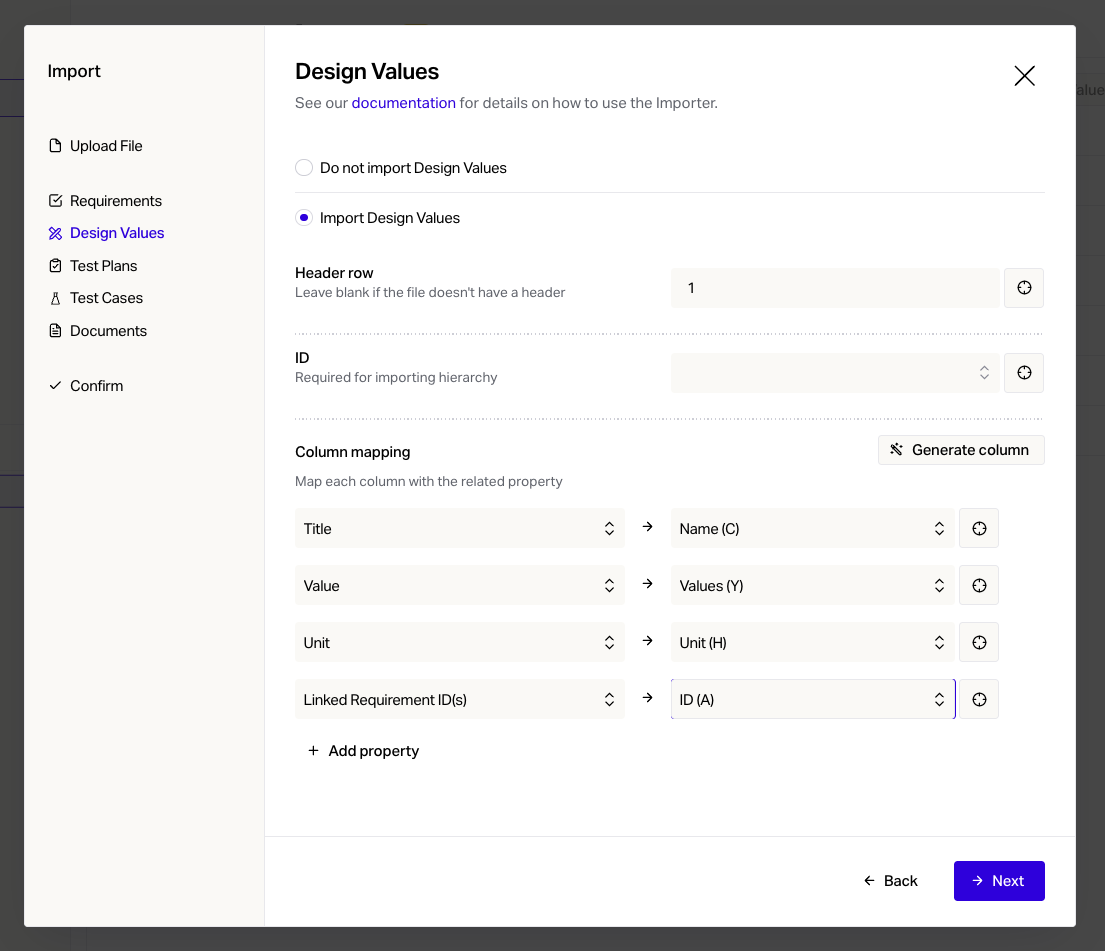
The importer supports importing other types of data into Flow other than just requirements. Design Value, Test Plans, Test Cases, and Documents are imported in a similar way to Requirements and can either be done at the same time as importing requirements or separately.
Test Cases
For test cases, the importer supports importing steps within each test case. For a given test case, you should put each separate step action and step expected result on a new row without repeating the rest of the test case information:
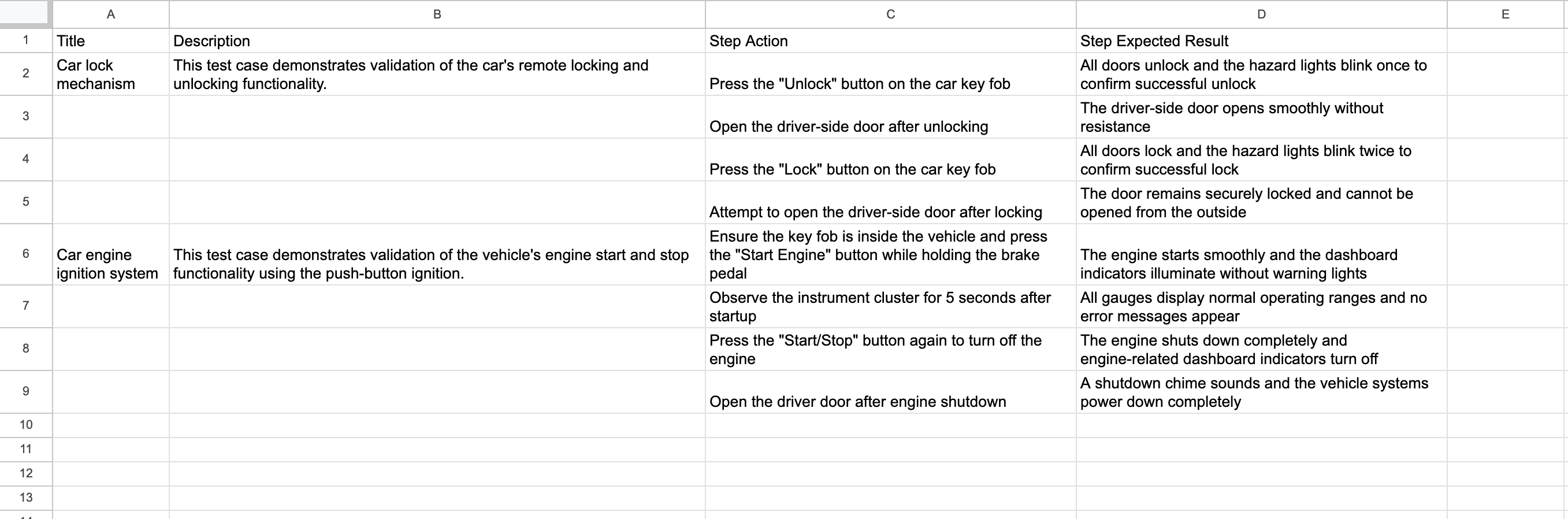
Next, check the Import steps option and ensure you have mapped the Step Action and Step Expected Result columns.