Requirement Statement Automation
Last updated: December 6, 2025
Introduction
In complex engineering projects, crafting precise and consistent requirement statements can be a challenging task. Flow's new Design Value Autocomplete feature aims to simplify this process, offering intelligent suggestions as you type.
How it works
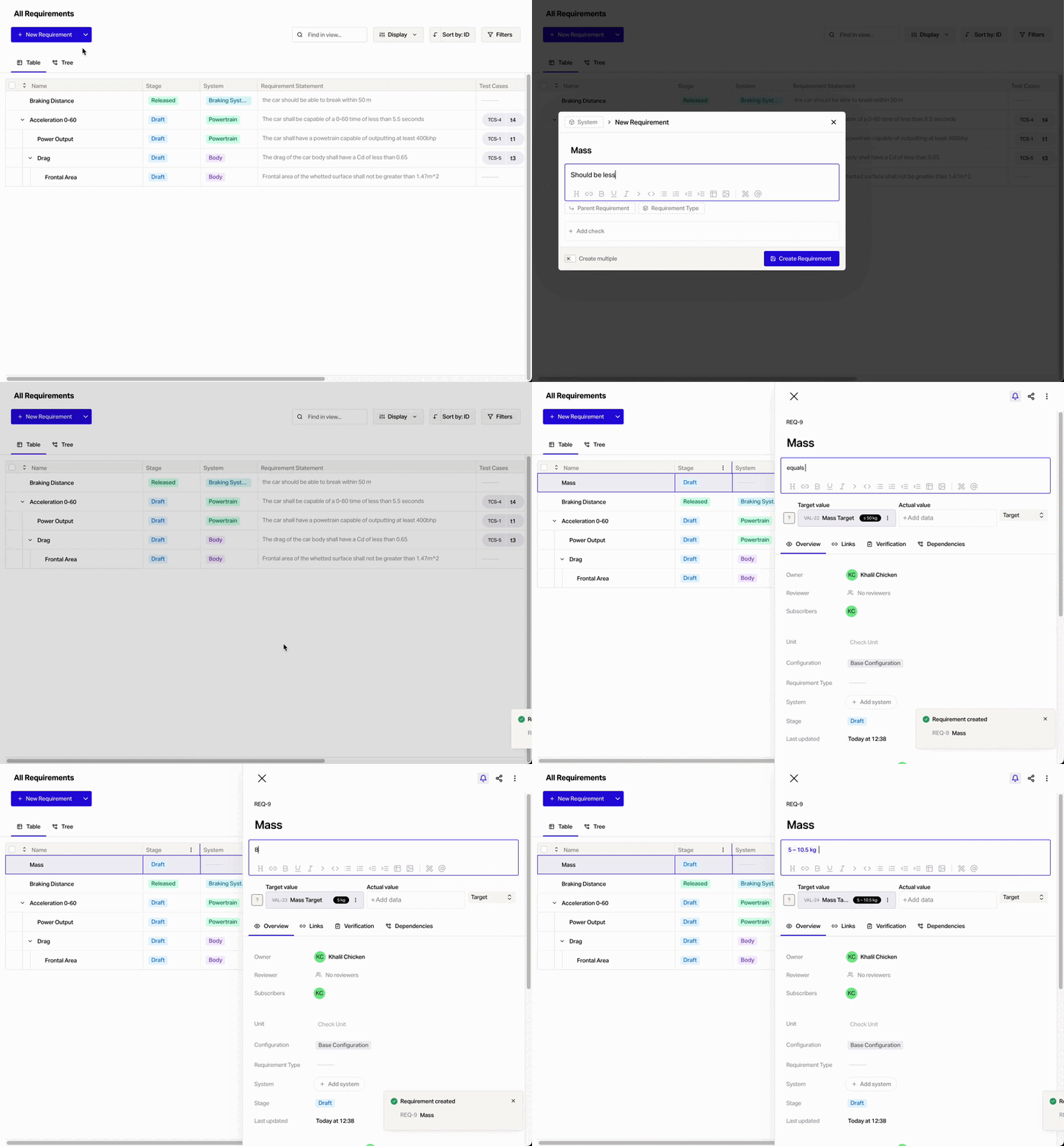
The Design Value Autocomplete feature automatically kicks in as you type your requirement statement. It recognizes specific patterns and suggests new design values based on your input. Let's break down how this feature works:
Recognized Patterns
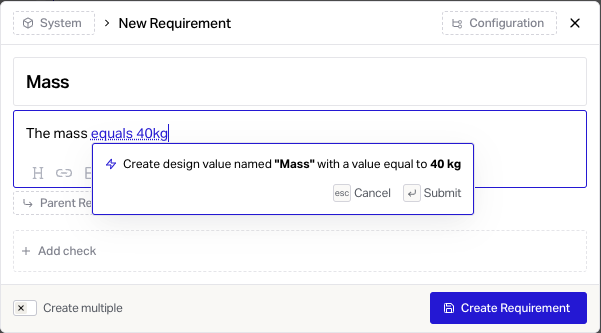
Equality
Triggers: "equals", "is", "shall be", "will be" or "must be"
Example: "The mass equals 40 kg"
Matches: A number (including decimals) with an optional unit
Less Than
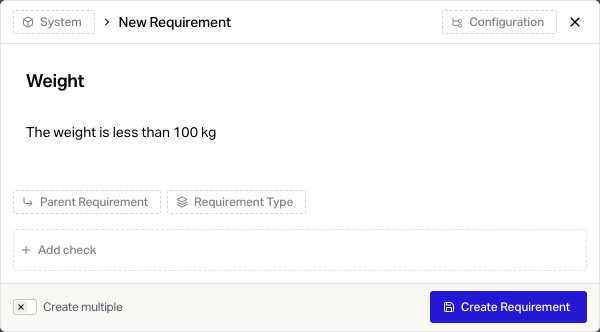
Triggers: "less than", "at most", "up to", "maximum", "maximum of"
Example: "The weight is less than 100 kg"
Matches: A number with an optional unit
Greater Than
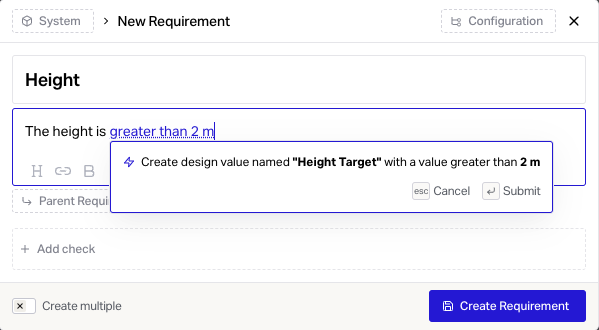
Triggers: "more than", "greater than", "at least", "minimum", "minimum of"
Example: "The height is greater than 2 m"
Matches: A number with an optional unit
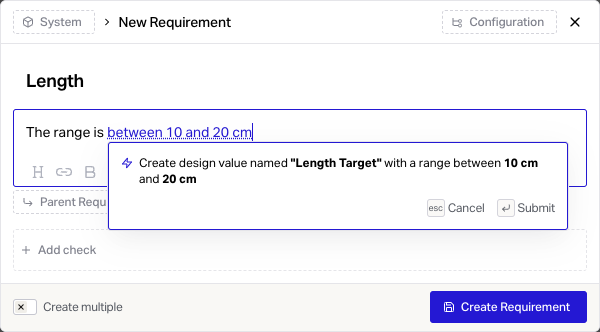
Between
Triggers: "between", "from" or two numbers separated by a "-"
Example: "The range is between 10 and 20 cm"
Matches: Two numbers separated by "and" or "-" with an optional unit
General Features
Supports negative numbers and decimals
Units are optional (can include uppercase letters, numbers, and forward slashes)
Case-insensitive matching, so "Equals" and "equals" would both work
The Autocomplete Process
As you type, the system recognizes a matching pattern in your input.
It extracts relevant information (value, range, unit).
You're prompted to create a new design value based on this information.
The requirement check type is updated to "Target" if it's currently set to "None".
The target value is updated to reference the newly created design value.
The statement is updated to reference the newly created design value.
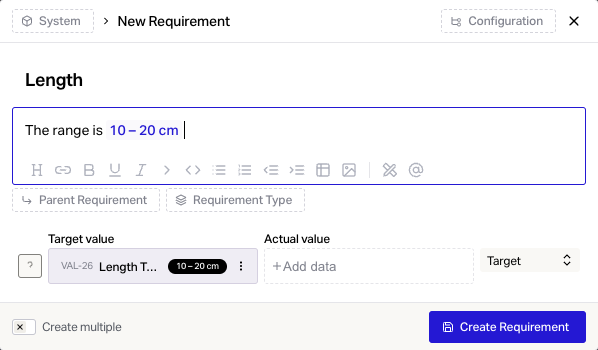
To start using the Design Value Autocomplete feature, simply begin typing your requirement statement as you normally would. When the system recognizes a pattern, it will prompt you to create a new design value. You can then review and confirm the suggestion, making any necessary adjustments.