Architecture & Diagrams
Last updated: December 24, 2025
The Architecture feature in Flow provides a visual, interactive way to organize systems. It allows you to explore, edit, and reason about your system architecture while staying directly connected to the underlying project data.
Architecture
The main Architecture view is directly connected to the Flow database. Any changes made here, such as rearranging systems, adding requirements, or creating interfaces between systems are immediately reflected in your Project.
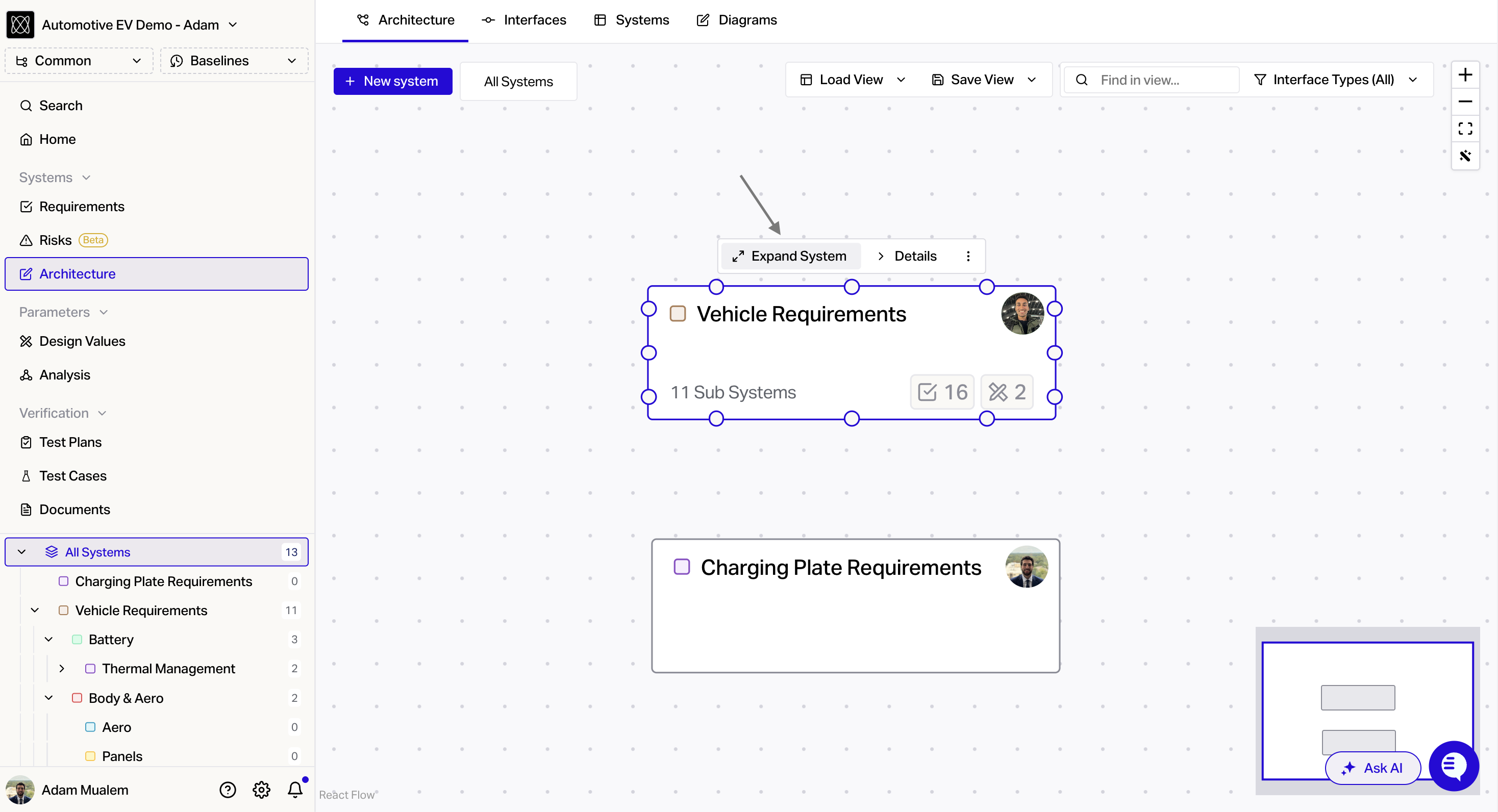
System boxes can be collapsed or expanded to reveal their subsystems, which can be freely repositioned to improve clarity, logical grouping, and readability.
Interfaces and Connections
When you draw a linkage between two systems, Flow automatically creates an Interface object. An interface represents a connection between two systems and includes:
Source System
Target System
Interface Type
One or more Requirements that define the interface
This ensures architectural connections remain structured, traceable, and tied directly to requirements.
Automatic Layout
The magic wand icon in the top-right corner automatically arranges the architecture diagram using Flow’s AI-driven layout logic. This helps produce a clean, readable diagram without manual positioning.
Navigating and Saving Views
You can save multiple architecture views and return to them at any time. Saved views can be shared, viewed, and updated seamlessly across your team.
As you navigate through systems using the side tree, the Architecture view automatically zooms and scopes to show only the contents of the selected system.
This allows you to move seamlessly between high-level architecture and detailed subsystem views
Diagrams
To explore alternative architectural layouts in sandboxed views without modifying your Flow database, use the Diagrams tab.
Diagrams provide a sandbox environment where you can arrange and connect systems and requirements without creating interfaces or changing project data. This is useful for concept exploration, reviews, and presentations.
You can insert systems and requirements using the toolbar at the bottom of the diagram window. Inserted elements automatically stay in sync with the latest data from your Flow project.
Saving and Exporting Diagrams
Diagrams are saved automatically in Flow. You can export any diagram as a PNG file for use in presentations, documentation, or external tools.